

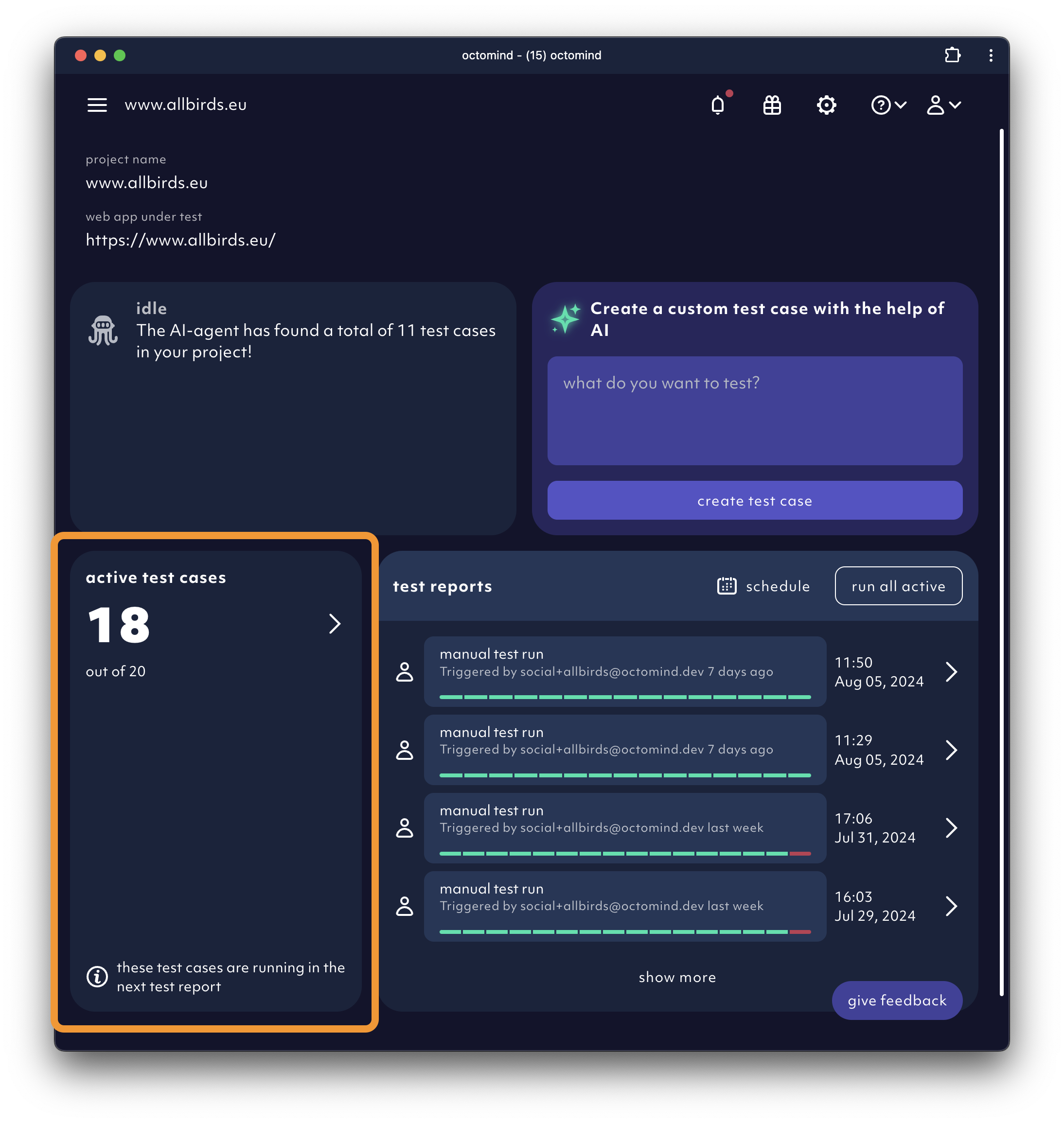
A test case is a set of steps that mimic a user flow. You can find an overview of all your test cases in theDocumentation Index
Fetch the complete documentation index at: https://octomind.dev/docs/llms.txt
Use this file to discover all available pages before exploring further.
test case section of the project overview page or in the test cases page accessible from the left sidebar.
It is the place where you can add, edit or delete test cases. From here, you can also grow your test suite by having our AI agent generate new tests based on specific test cases.
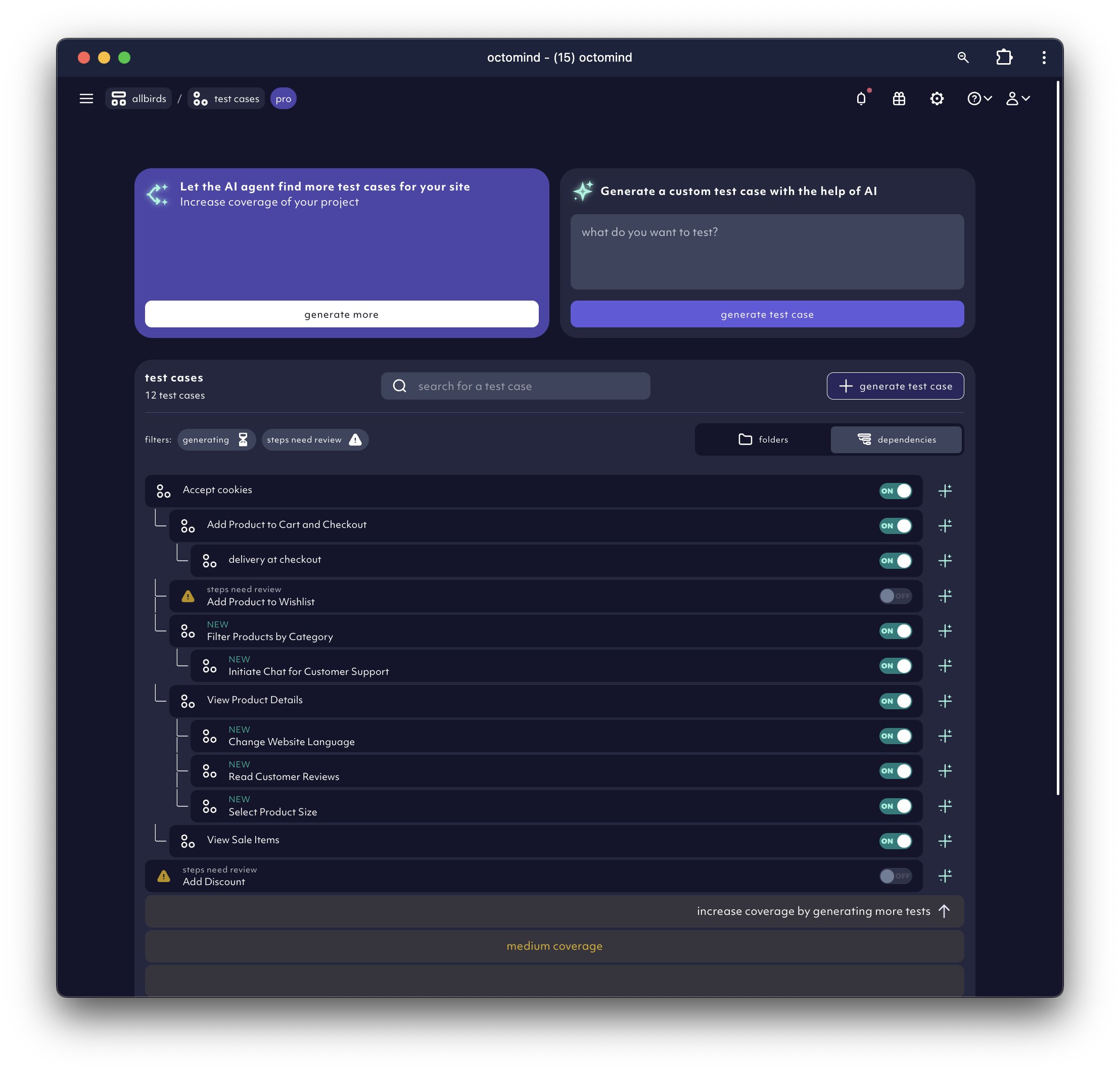
Tests are displayed in dependency view mode as default. It shows the test case hierarchy - how tests are chained together and which tests will run after which when executed.
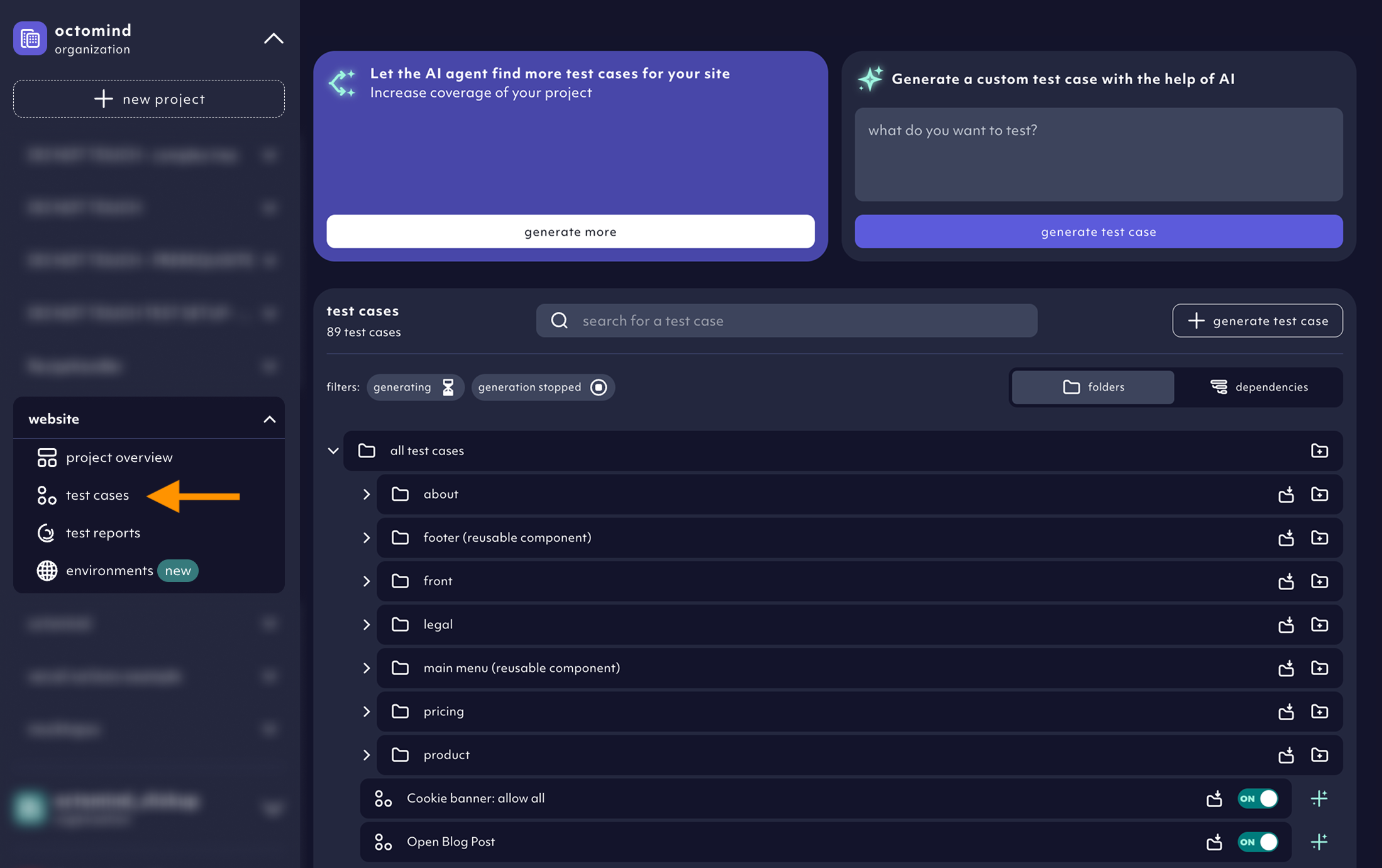
Views
You have 2 options to view your test cases. In thedependencies view, you can see the test cases as they chain together in execution sequences:
folders view. If you don’t like the dependency tree view and prefer your own arrangement, you can use the folder view now. Create new folders and move your test cases into them to organize your list as you wish.
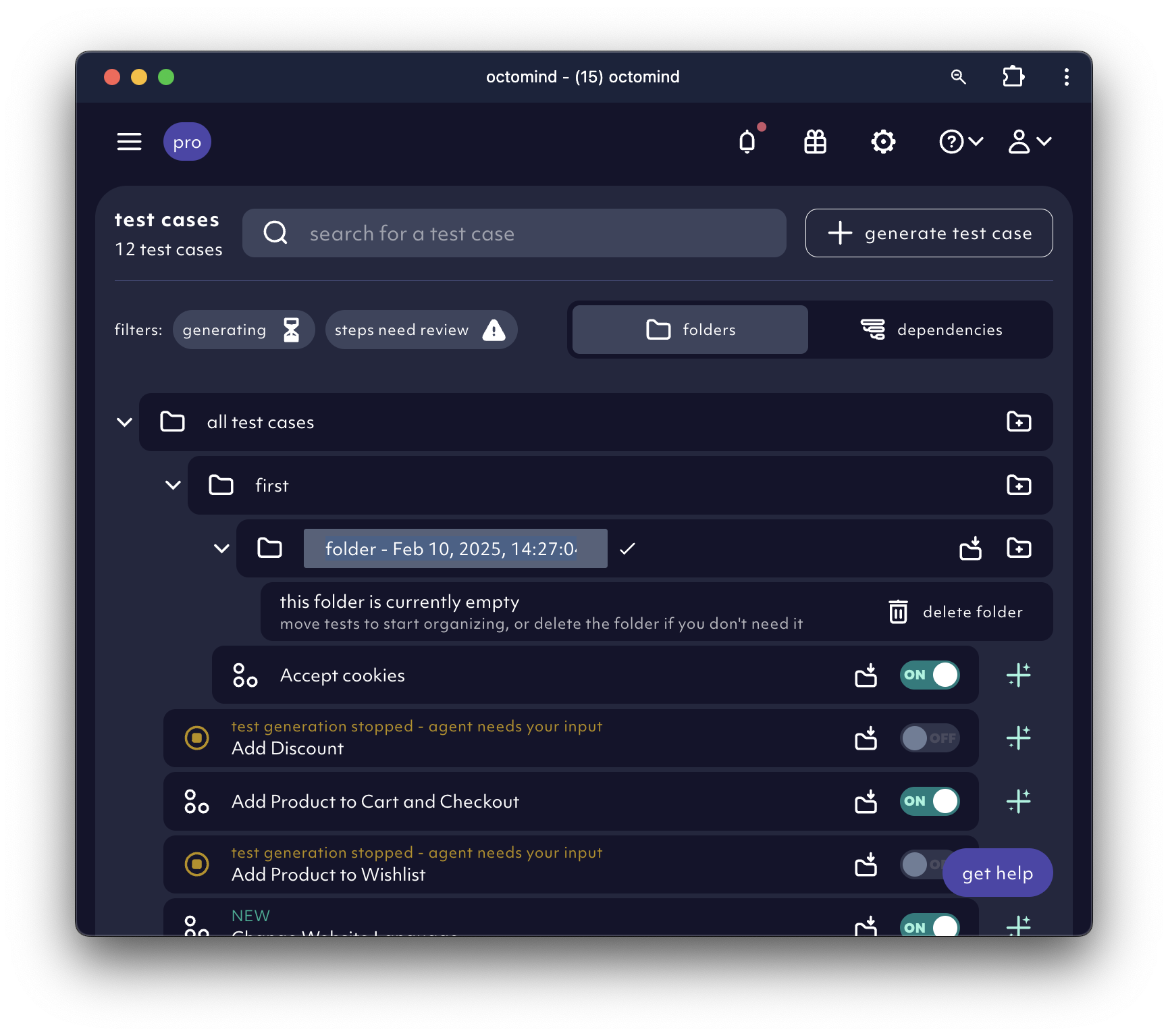
Organize tests in folders
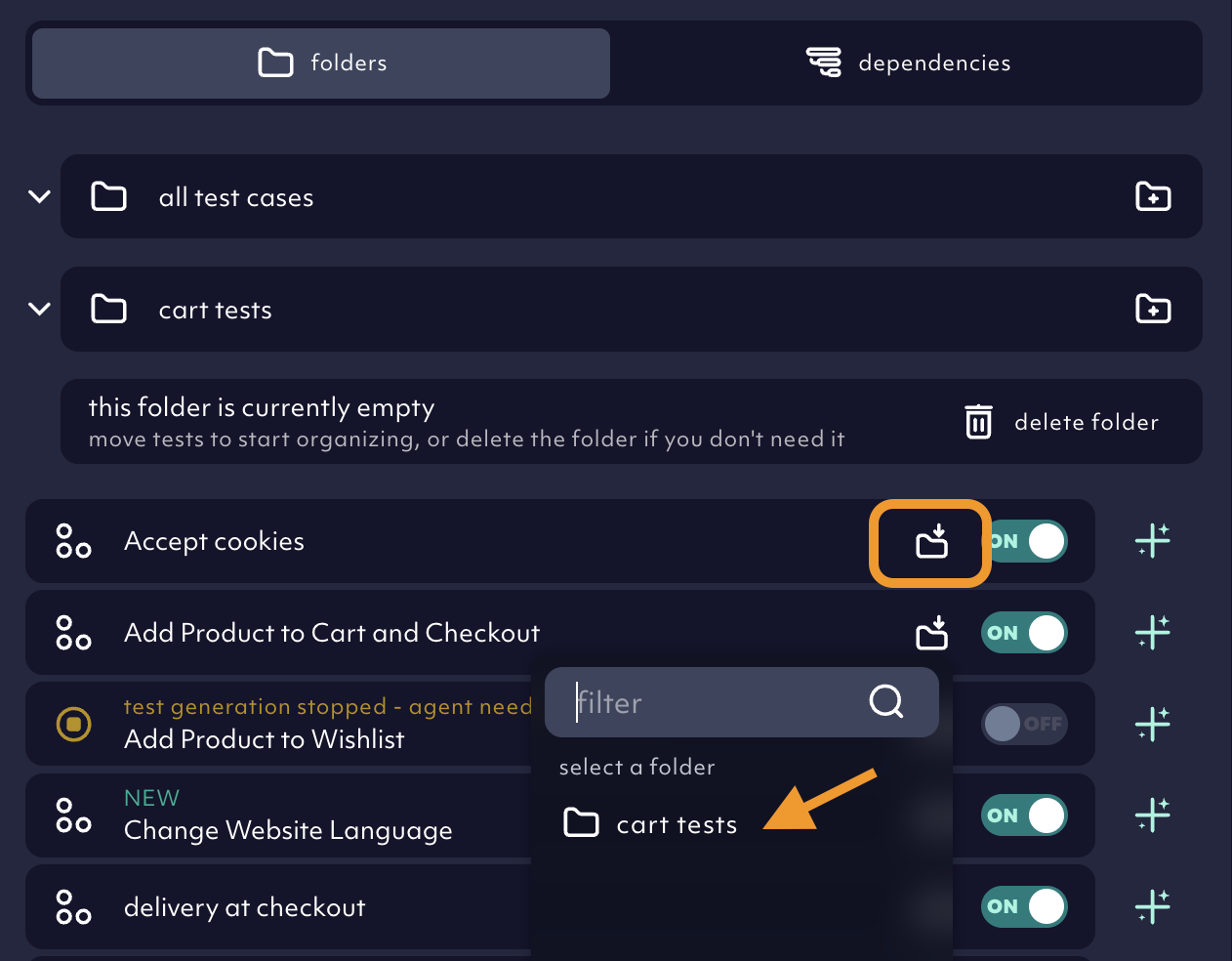
In thefolders view, use a unique name to create and edit folder as you wish. Use the into folder icon in the test case you want to move.
You can also pick folders right from the start when creating tests.
Use tags
We added customizable tags to test cases so you can slice & dice your test suites and run the happy path tests more frequently or tag to exclude your flaky tests. Go to the test case, add a tag and save the test.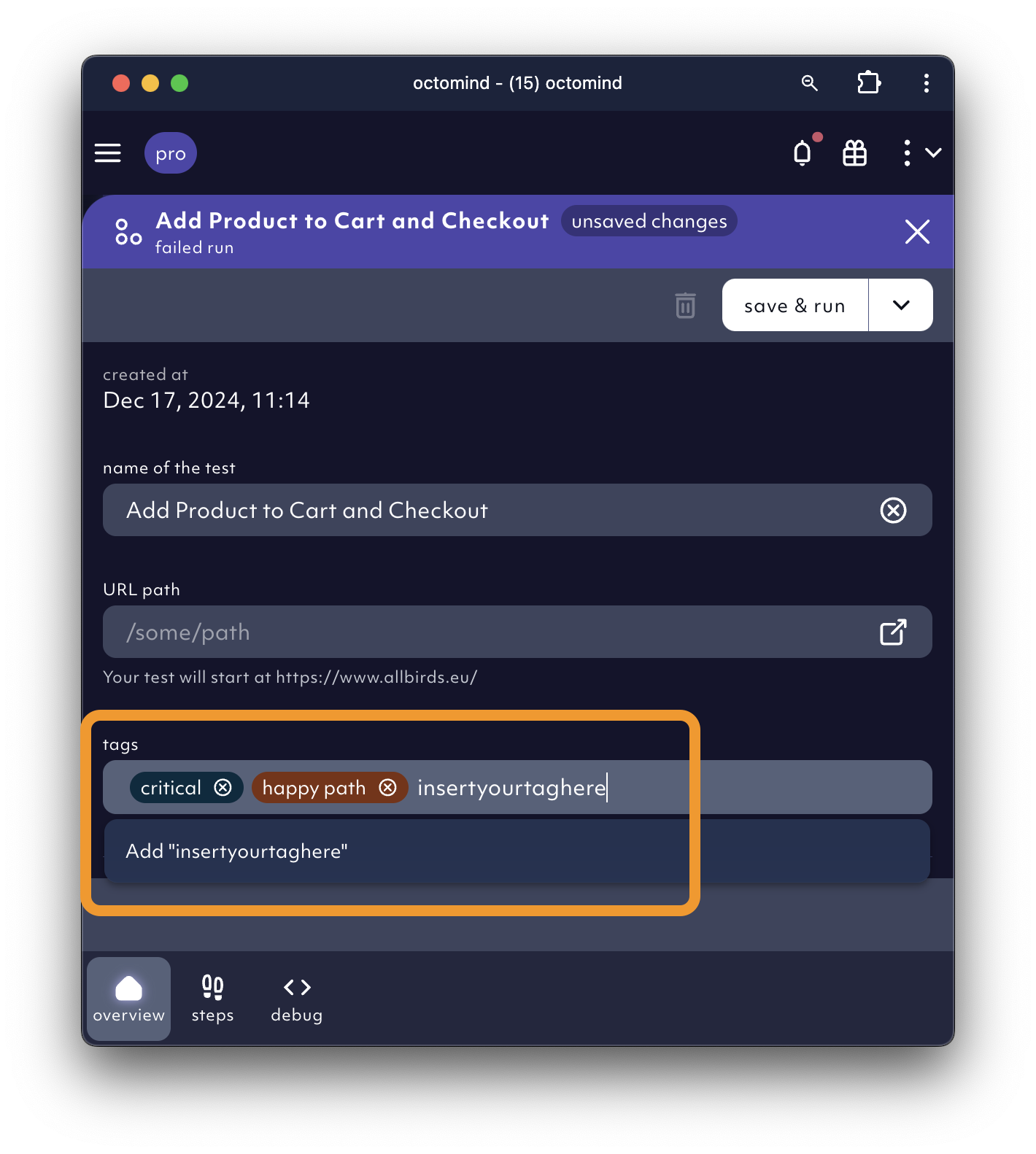
Tag view
The new tag view provides a comprehensive overview of all your tags in one place. You can see all tags that exist in your test suite, which test cases are assigned to each tag, and manage your tags efficiently.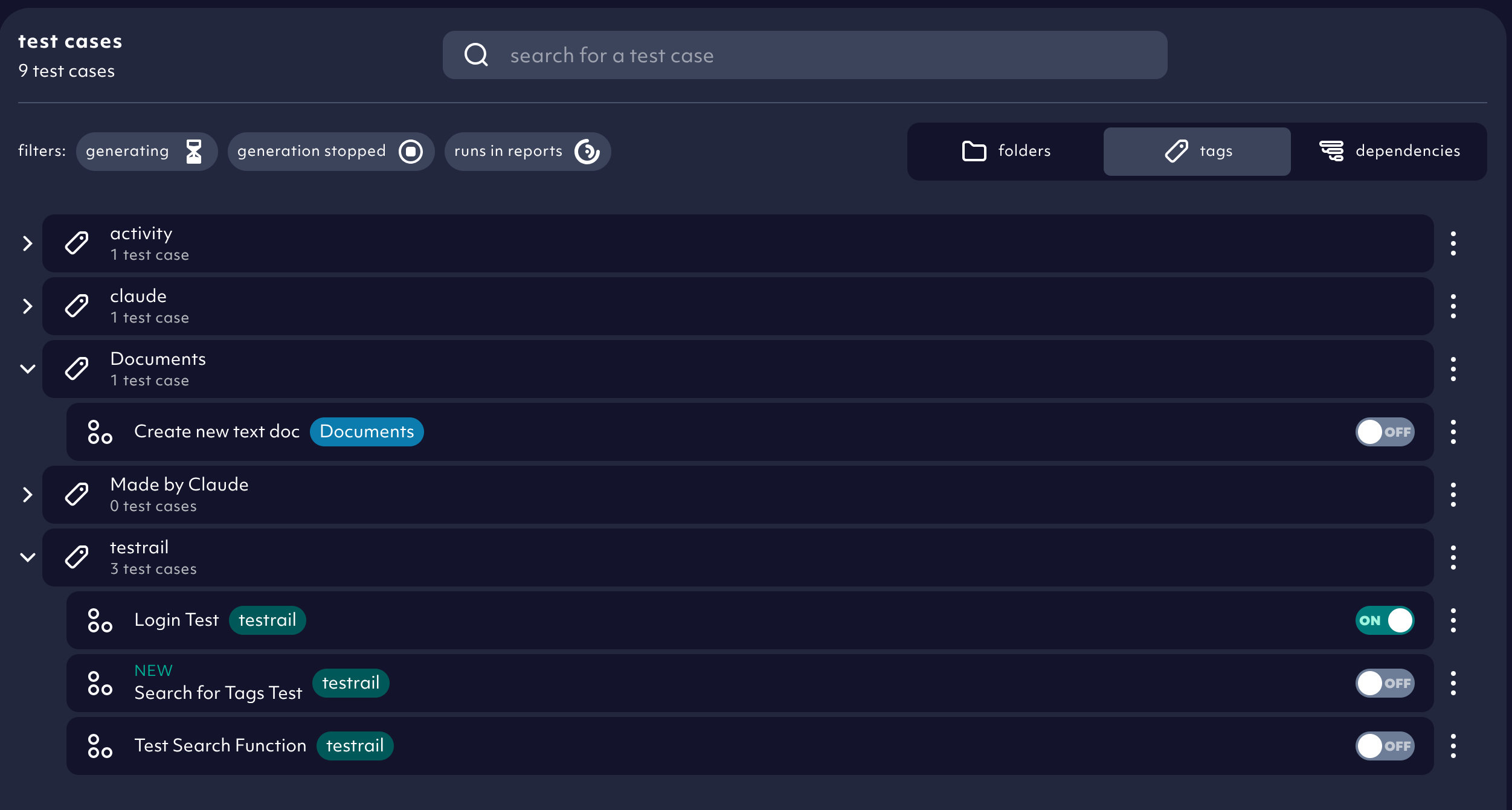
- View all tags: See a complete list of all tags used across your test suite
- See assigned test cases: Each tag shows how many test cases are assigned to it and you can expand to see the individual test cases
- Rename tags: Update tag names to better reflect their purpose
- Delete tags: Remove tags that are no longer needed. Note that deleting a tag only removes the tag itself - the test cases assigned to that tag remain intact and are not deleted
Search tests
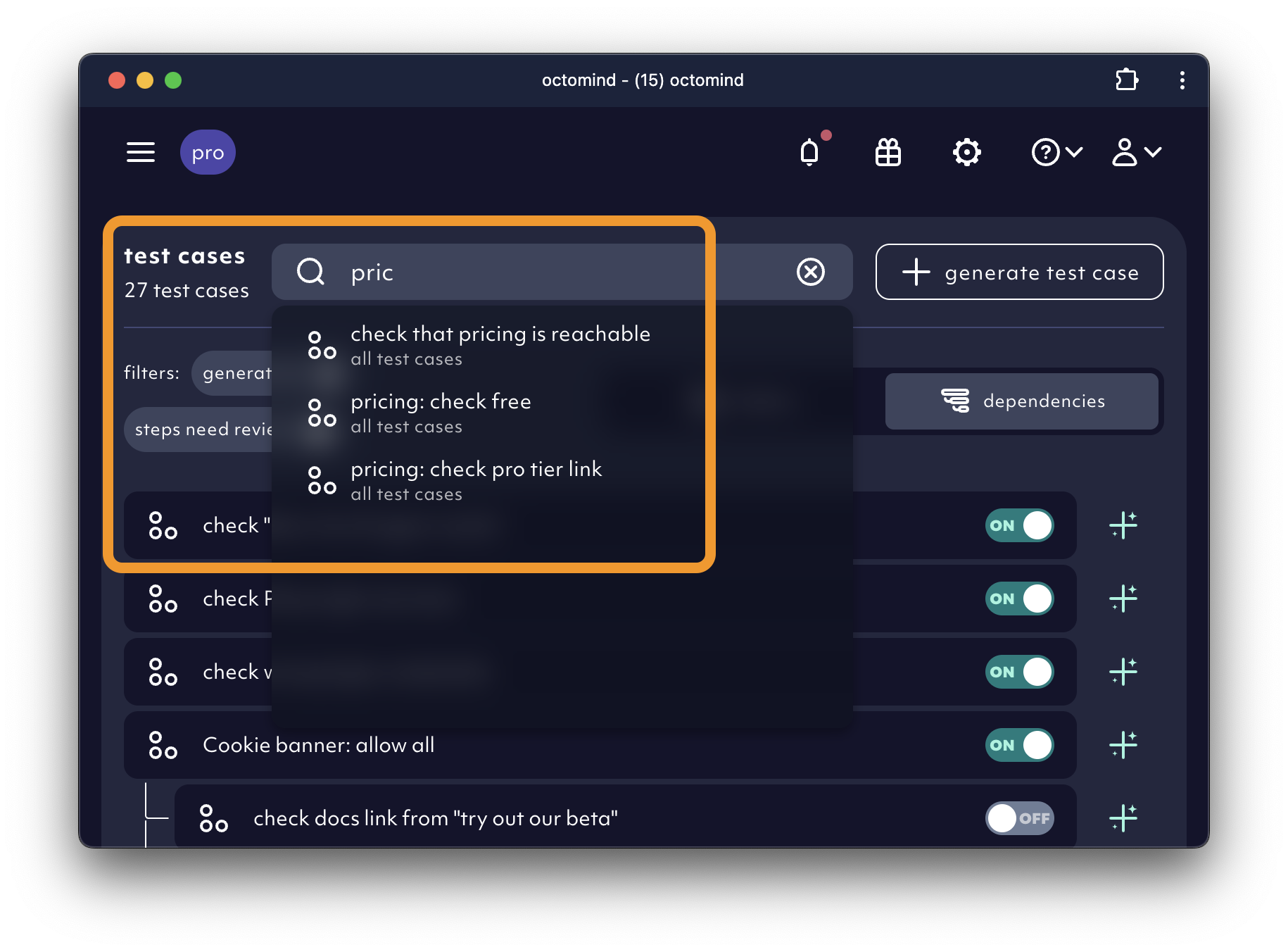
Go to thesearch window to look for specific test cases in your test suite.
Activate your tests for execution
The more your test suite grows, the more important it gets to keep an overview over which of your tests are executed and contained in the newest test report. In Octomind, we speak ofactive test cases, which are all the tests being run when a test report is triggered.
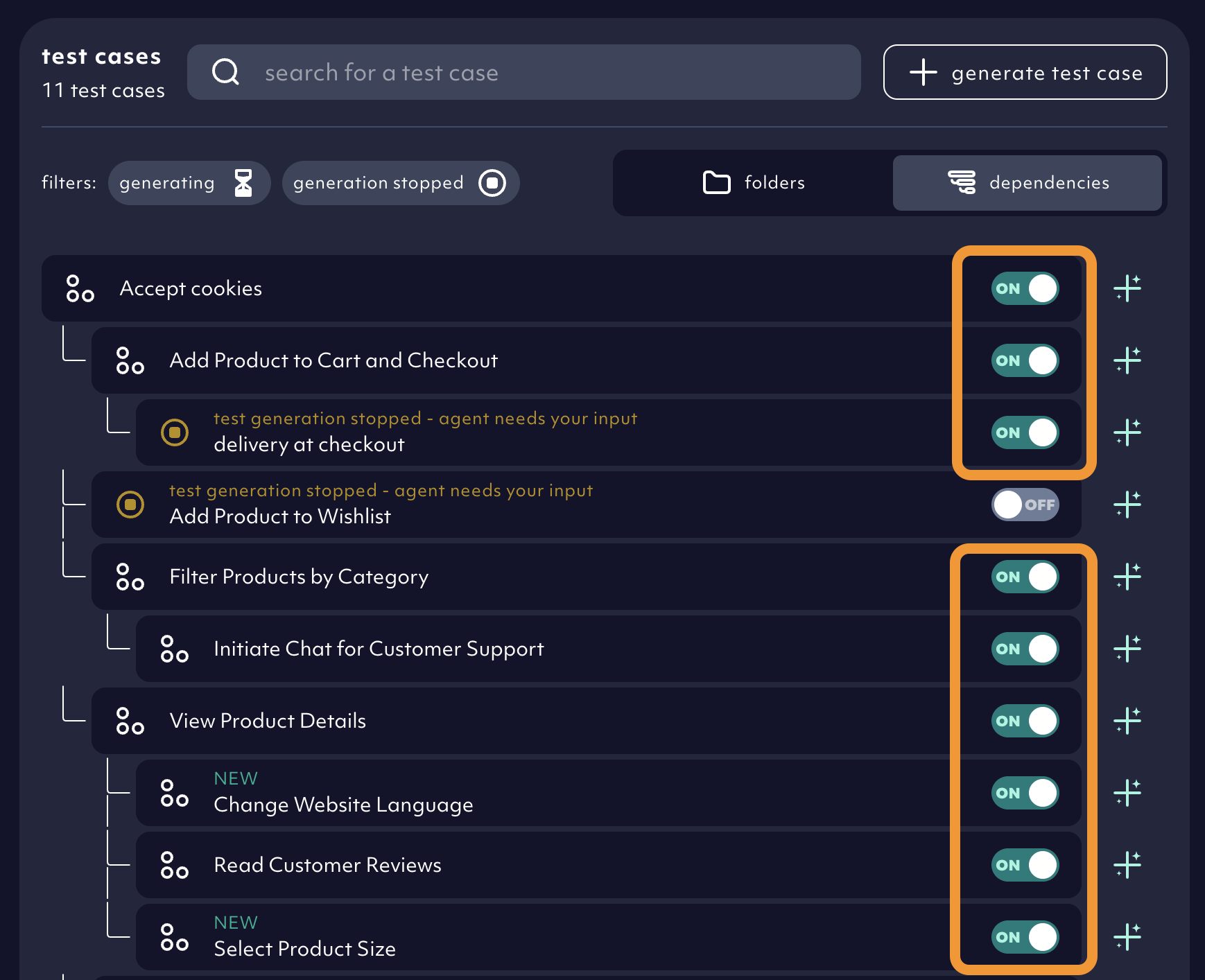
ON and OFF.