No need to sift through a red wall of broken tests. Figuring out what went wrong can be a huge time investment, especially when your test suite grows. We will help you make you identify the reason for the failure really fast.Documentation Index
Fetch the complete documentation index at: https://octomind.dev/docs/llms.txt
Use this file to discover all available pages before exploring further.
We have classified the root cause of the broken test
Octomind analyzes the root cause of failed tests automatically. Slow page loading, potential bug, failed test dependency … we will do the first step you indentify why the test failed. And we will give you the tools to investigate further.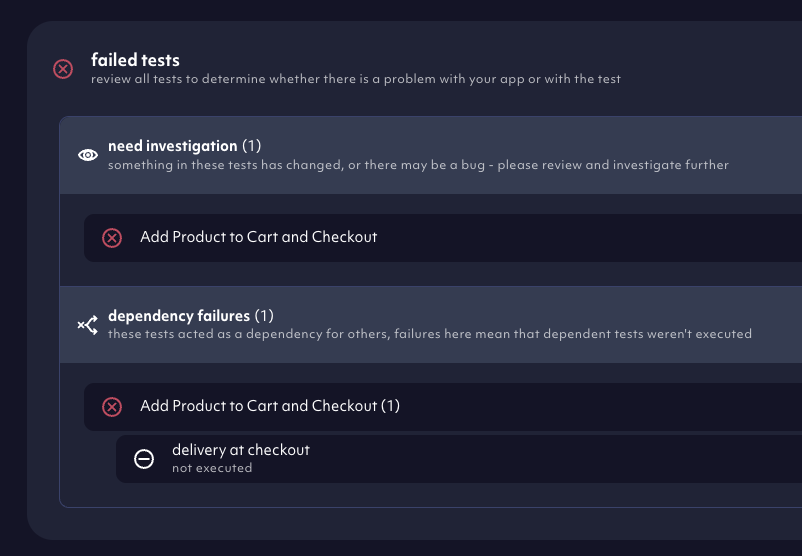
Inspect what happened in one single place
To save you the hassle of jumping mental context back and forth to figure out what went wrong, we have packed everything into one view. One place to oversee the test run timeline, root cause, agent commentary, compare test runs, check error log and more.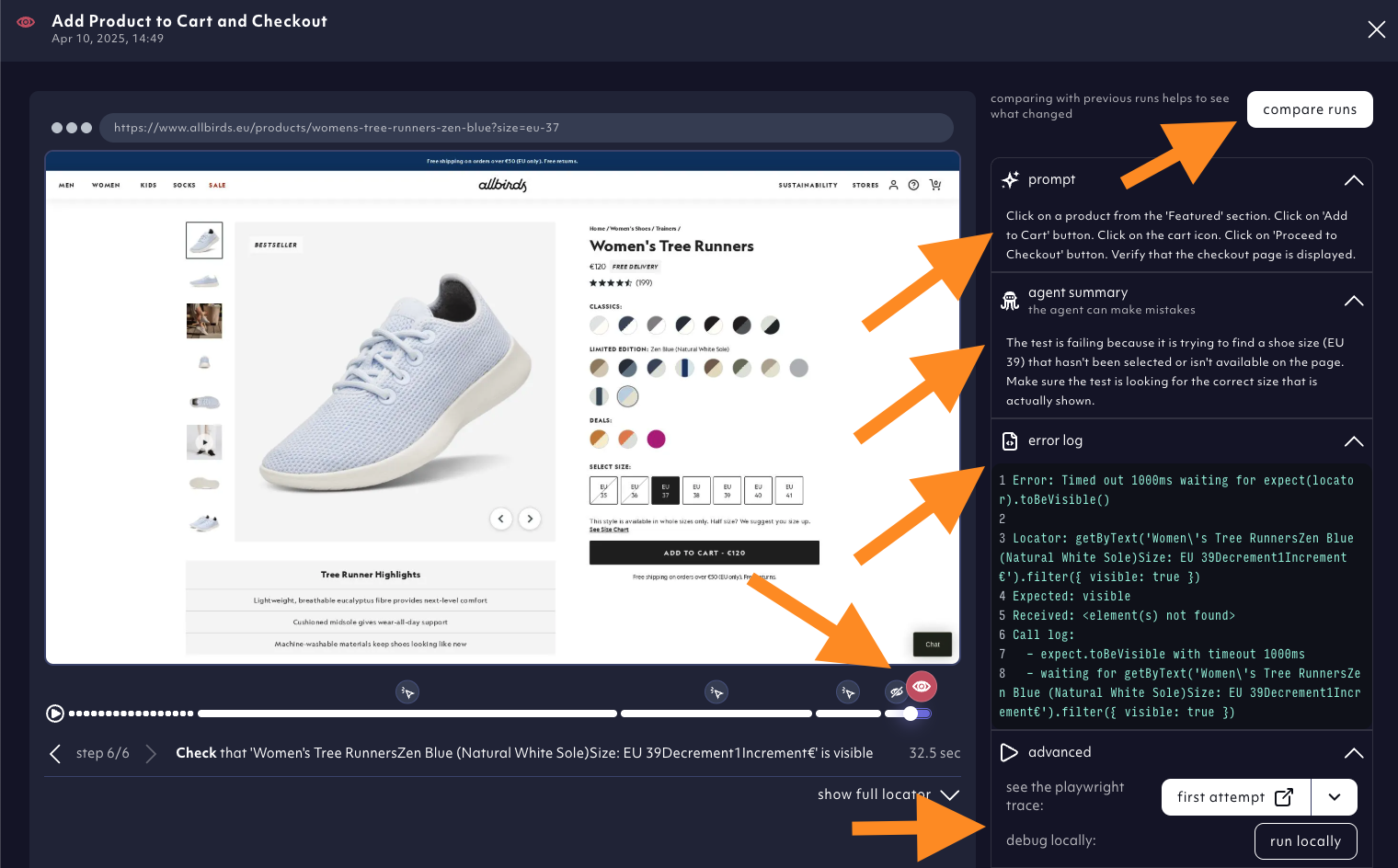
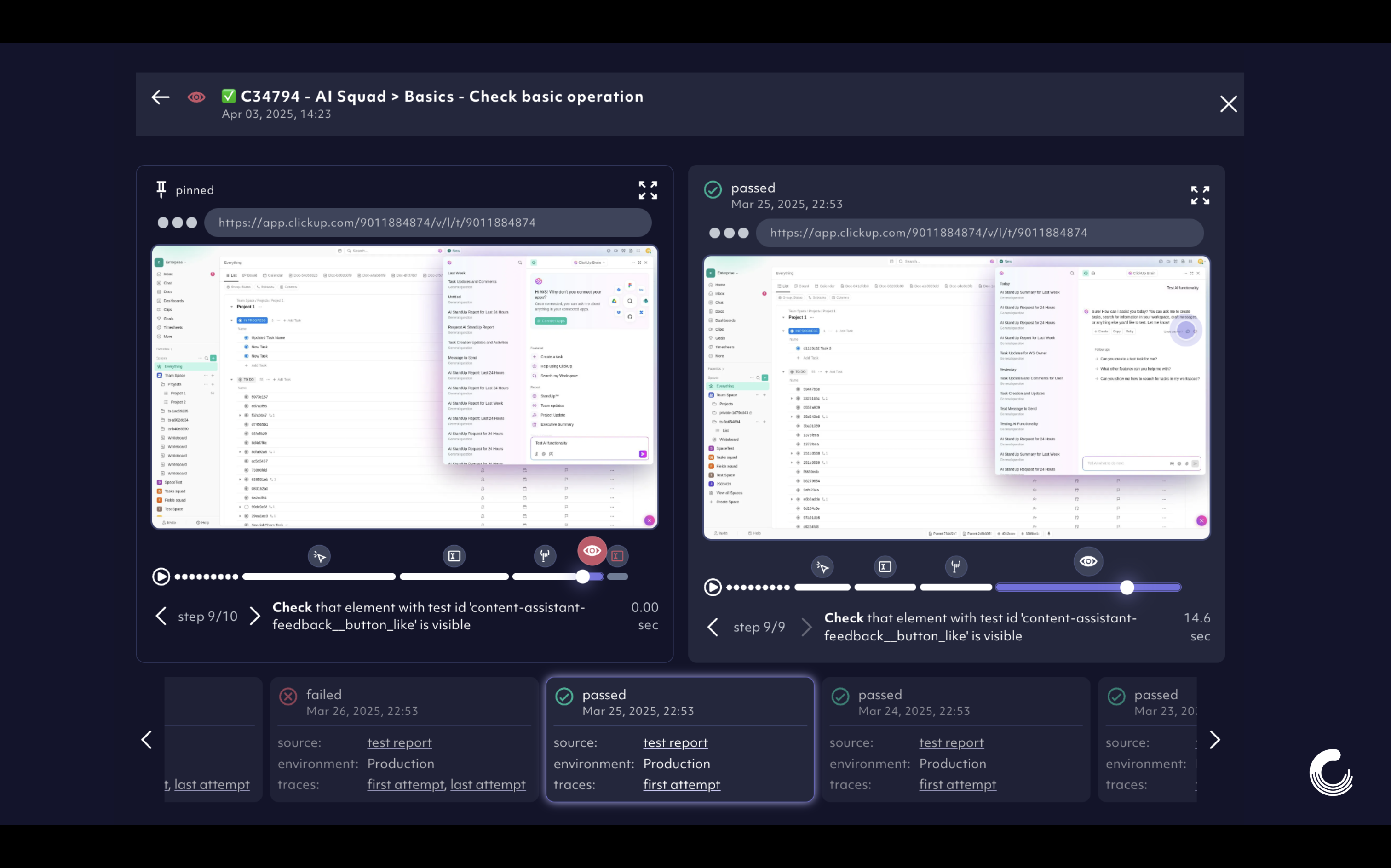
Compare the broken test with previous successful test runs
It’s possible you have many tests to manage and you’re not sure where that failed step was supposed to go. Maybe you didn’t even create the test and don’t have the context. Click oncompare runs in the upper right corner and swipe through the last successful runs and their timeline history.
Advanced test debugging
If you need more detailed insight into the test failure you can:- launch the Playwright Trace Viewer to investigate the playwright traces step by step
- run the test locally with our open source Debugtopus. It is an additional help that allows you to set breakpoints and step through the code.
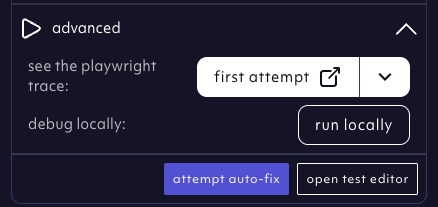
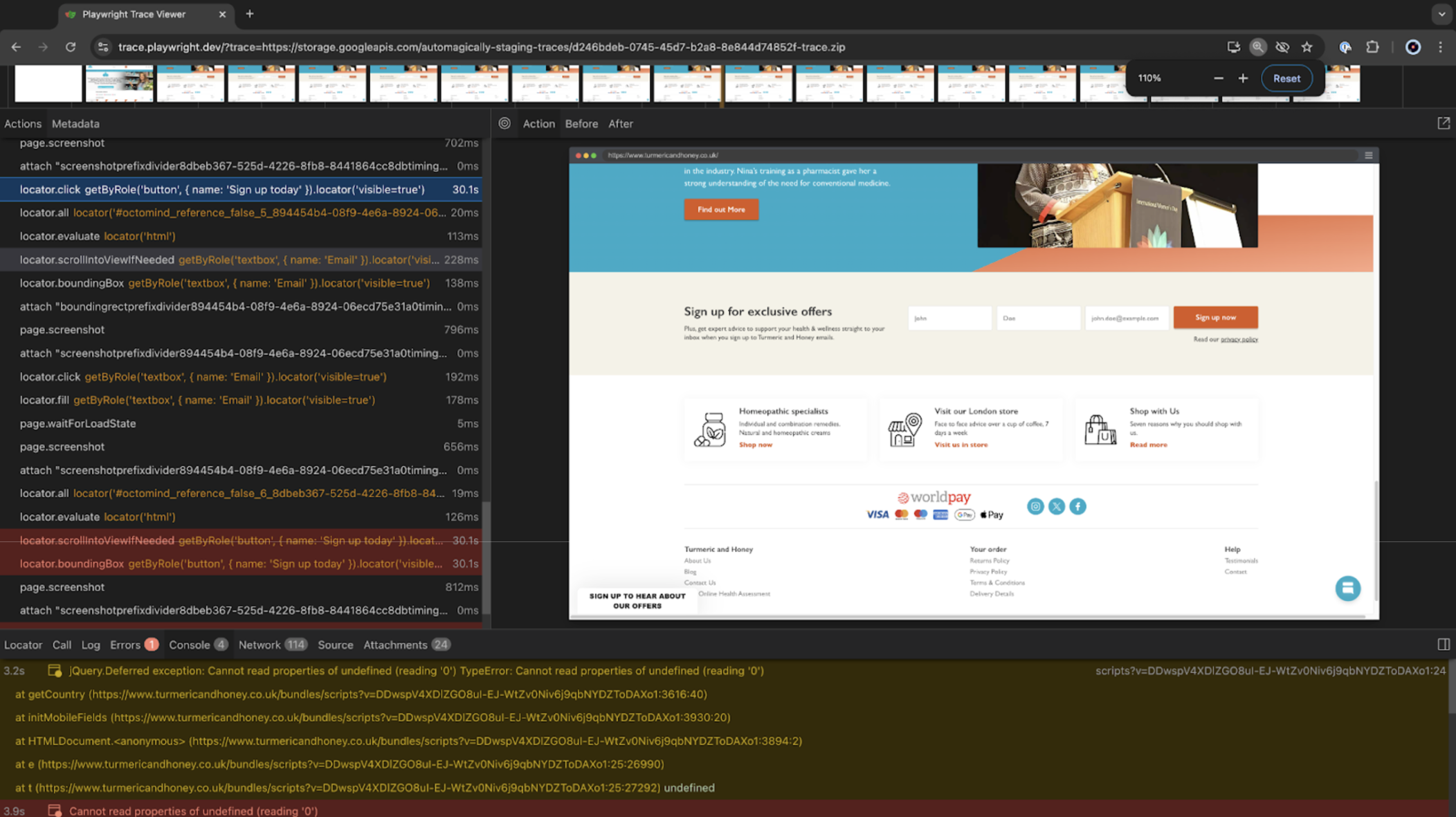
Playwright Trace Viewer
In theadvanced section of a test result, click on the respective Playwright trace to access to the Playwright Trace Viewer for an advanced visual debugging UI.
A GUI tool will open, with a granular timeline complete and detailed diagnostic information such as actions (clicks, navigation), events, console messages, network requests, and more that were generated during a test run.
What to do next? How to I fix the test?
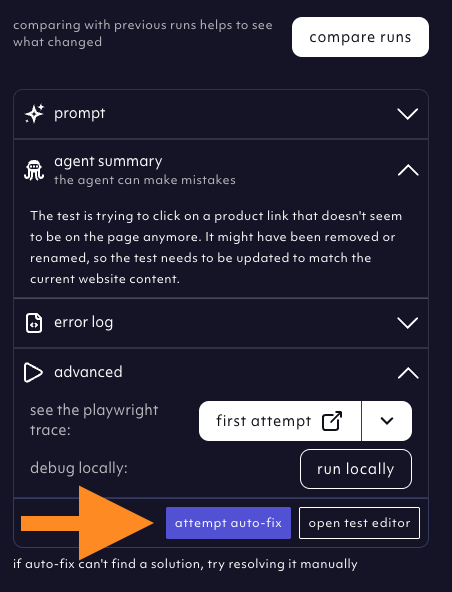
If you identified a broken test - a change in the app caused the test failure (e.g. a new build has broken the test locator), it means it’s fixable. There are several options how to fix it:- Try our auto-fix feature and have the AI Agent attempt to fix your test.
- Edit test steps manually with our visual test editor